

These are instructions on how to wirelessly sync your iPhone with iTunes using Wi-Fi Sync.
Step One
To follow these instructions you must jailbreak your iPhone.
Step Two
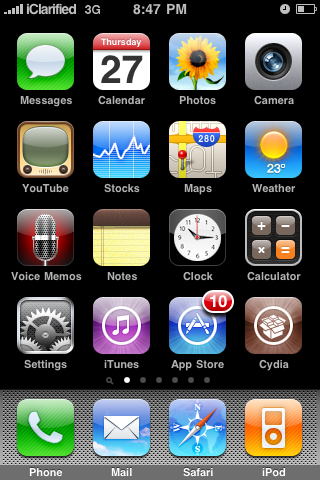
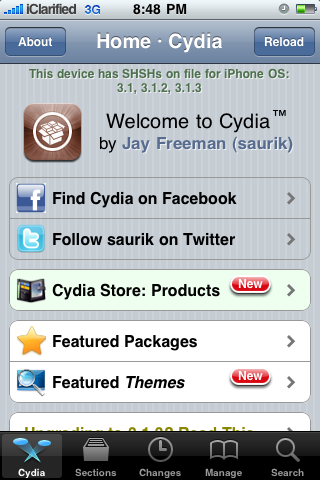
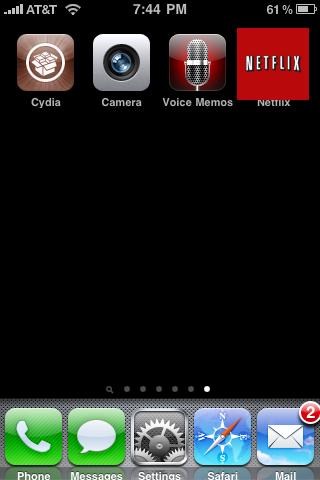
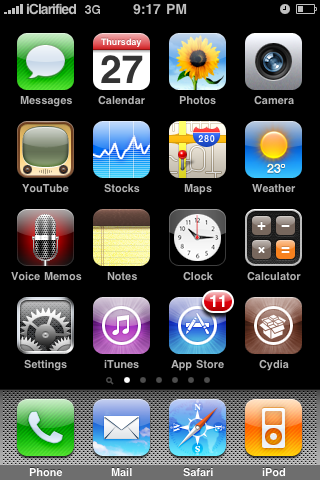
Press to launch Cydia from your SpringBoard.
Step Three
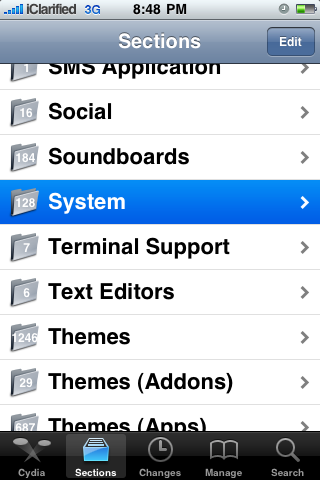
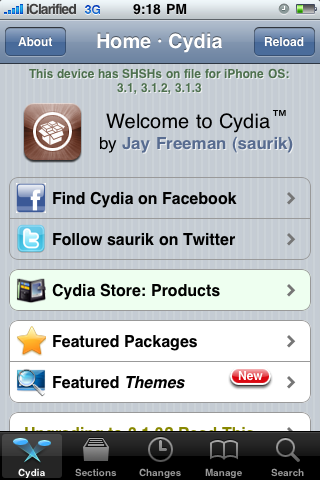
Press to select the Sections tab from the bottom of the screen.
Step Four
Press to choose the Networking section
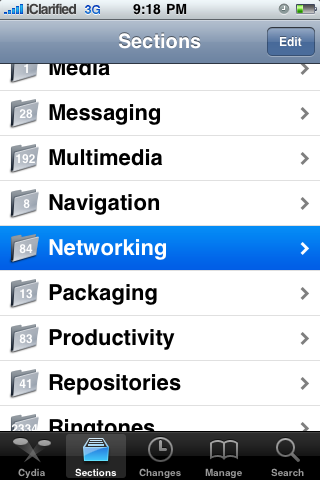
Step Five
Press to select Wi-Fi Sync from the list of packages.
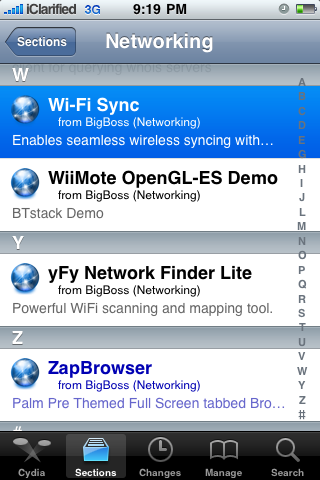
Step Six
Press the Purchase button at the top right of the screen. For detailed instructions on purchasing an app from the Cydia Store see this tutorial.
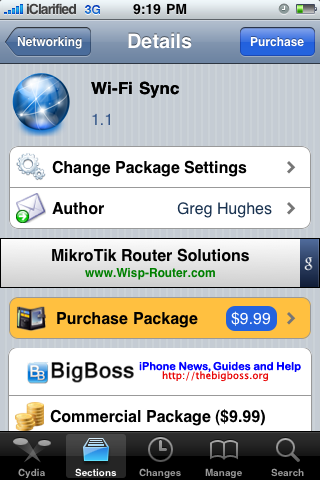
Step Seven
Once you have purchased the application press the Install button at the top right of the screen.
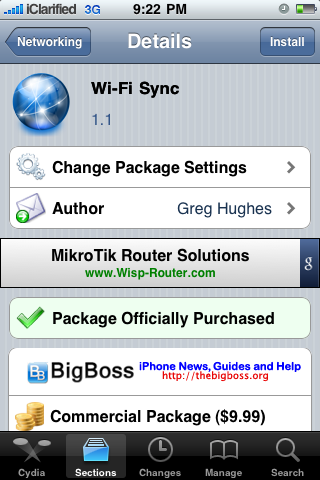
Step Eight
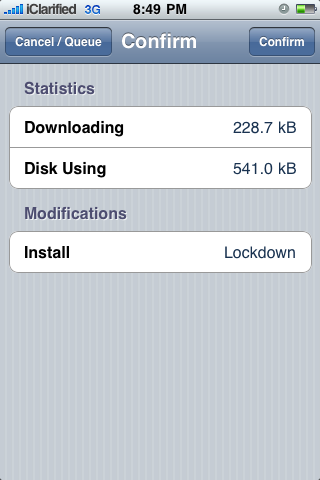
Press the Confirm button to begin installation.
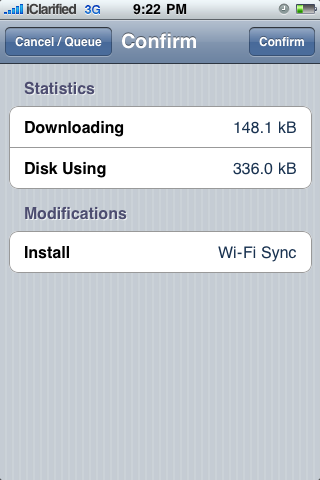
Step Nine
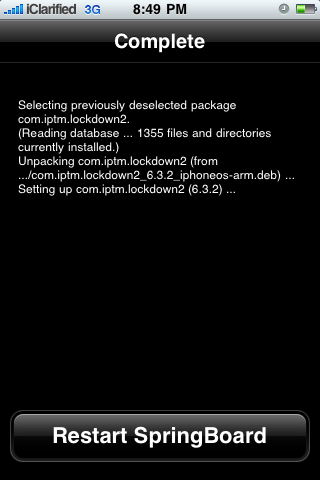
Once installation has completed successfully press the large Return to Cydia button.
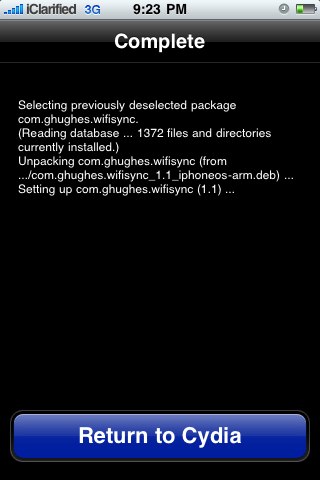
Step Ten
Open Safari from your dock and navigate to http://www.getwifisync.com.

Download the helper application for your operating system and install it.
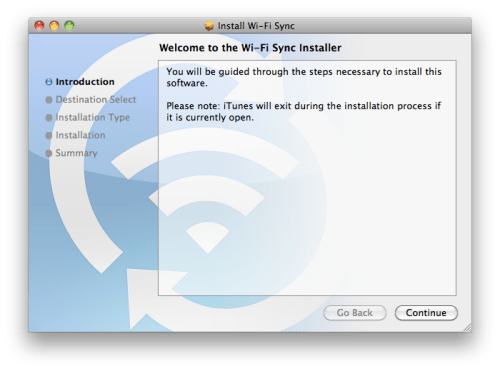
Step Eleven
Make sure your iPhone and computer are on the same wireless network then launch Wi-Fi Sync from your SpringBoard.
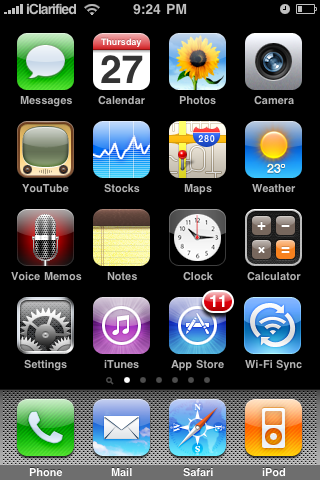
Step Twelve
As soon as the application is launched it will try to find a computer to connect to.
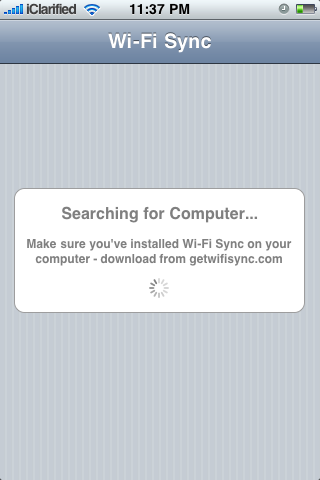
When the computer recognizes a device it will ask you if you want to pair with it. Click Yes
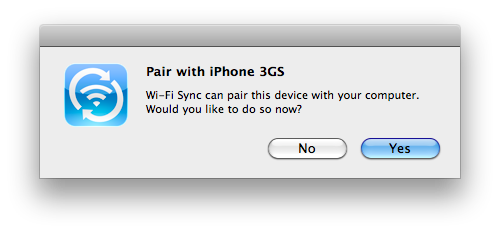
Then press Yes on the "Pair with Computer" alert that appears on your iPhone.

The iPhone will then tell you that you are ready to sync.
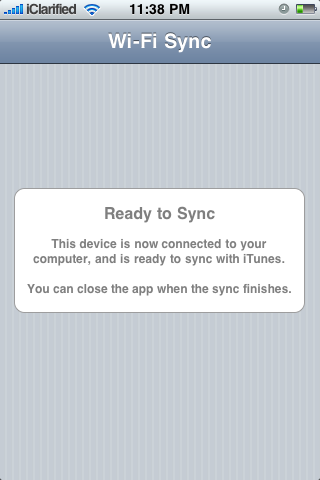
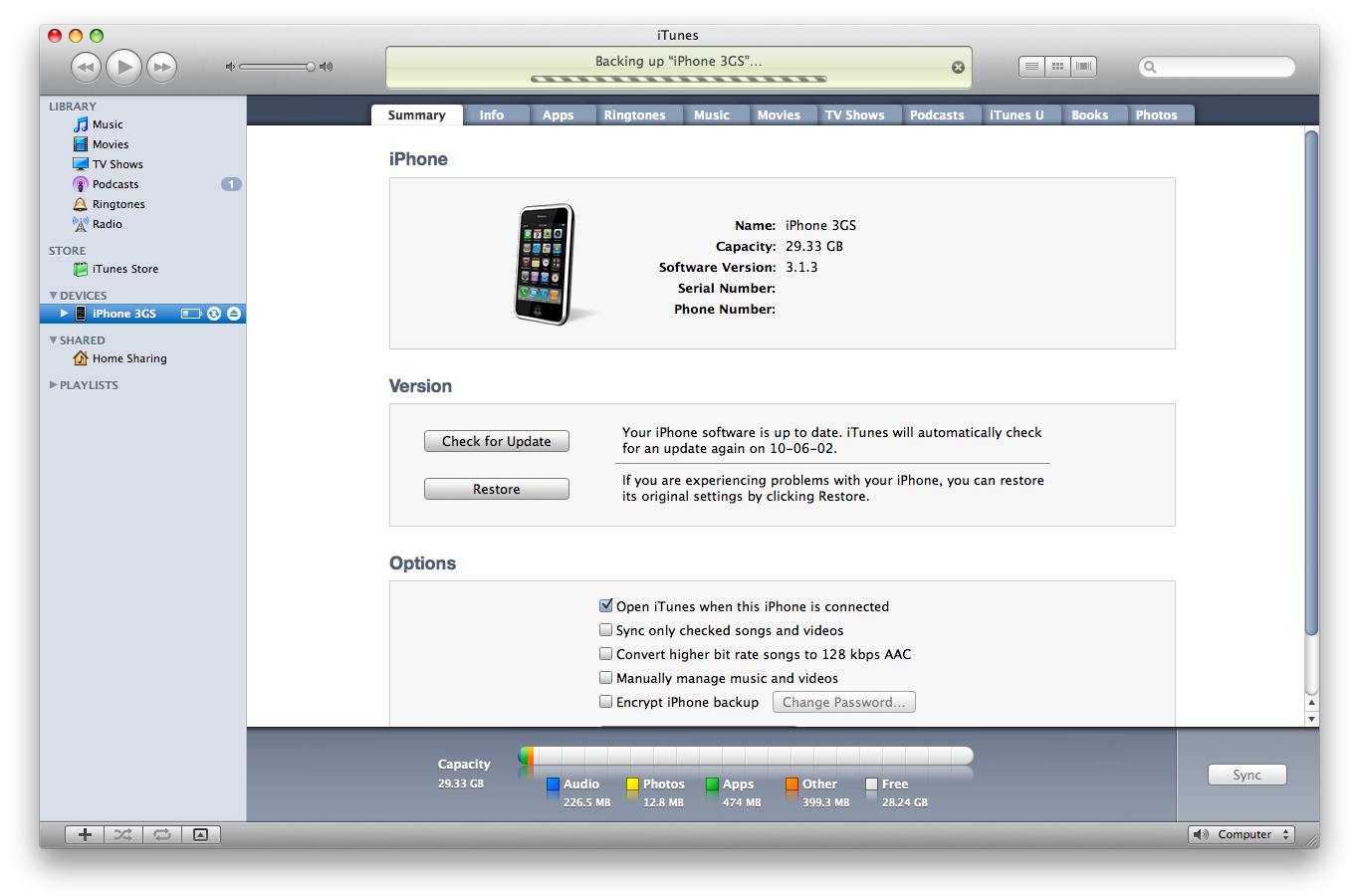
Your iPhone will now appear in iTunes and begin synchronization as though it was connected directly to the computer!
Step One
To follow these instructions you must jailbreak your iPhone.
Step Two
Press to launch Cydia from your SpringBoard.
Step Three
Press to select the Sections tab from the bottom of the screen.
Step Four
Press to choose the Networking section
Step Five
Press to select Wi-Fi Sync from the list of packages.
Step Six
Press the Purchase button at the top right of the screen. For detailed instructions on purchasing an app from the Cydia Store see this tutorial.
Step Seven
Once you have purchased the application press the Install button at the top right of the screen.
Step Eight
Press the Confirm button to begin installation.
Step Nine
Once installation has completed successfully press the large Return to Cydia button.
Step Ten
Open Safari from your dock and navigate to http://www.getwifisync.com.
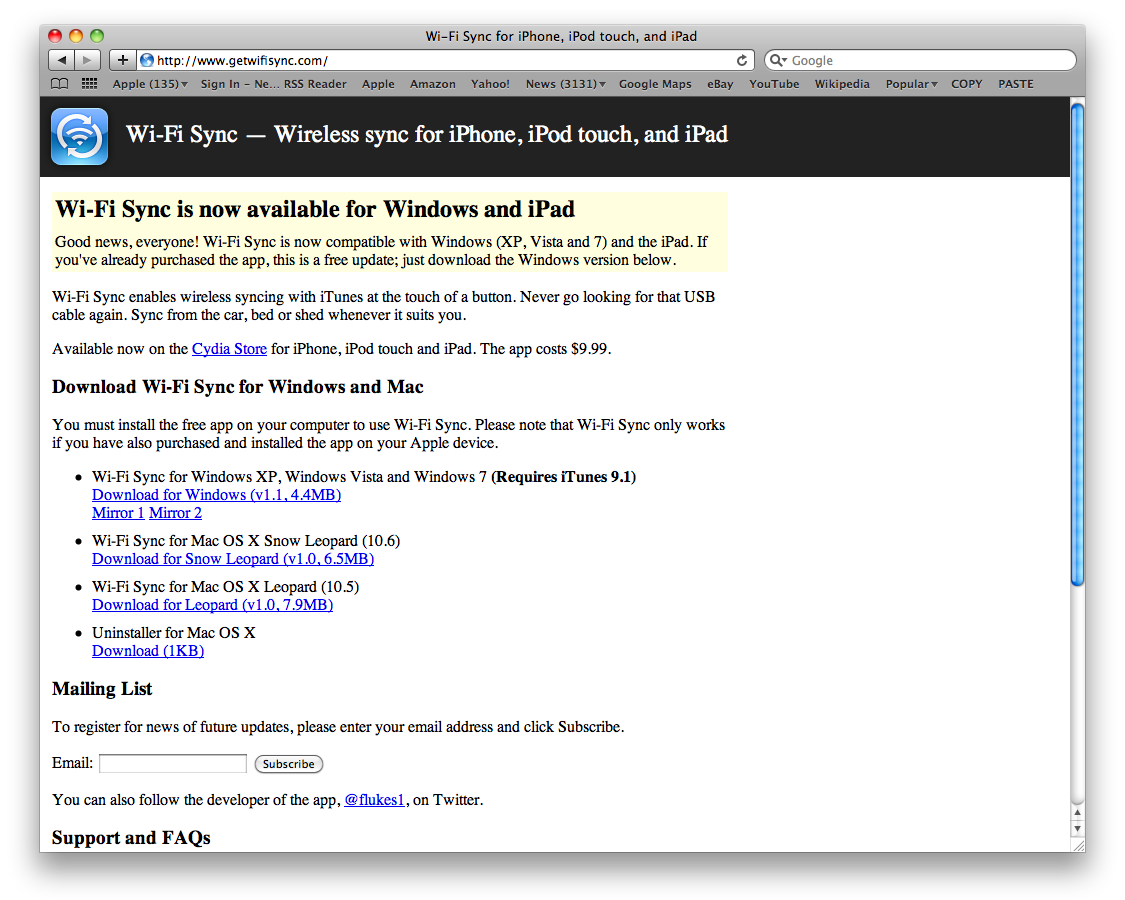
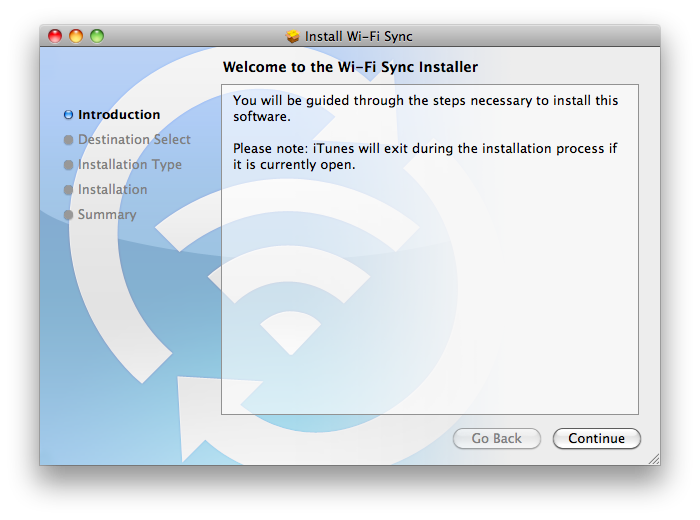
Download the helper application for your operating system and install it.
Step Eleven
Make sure your iPhone and computer are on the same wireless network then launch Wi-Fi Sync from your SpringBoard.
Step Twelve
As soon as the application is launched it will try to find a computer to connect to.
When the computer recognizes a device it will ask you if you want to pair with it. Click Yes
Then press Yes on the "Pair with Computer" alert that appears on your iPhone.
The iPhone will then tell you that you are ready to sync.
Your iPhone will now appear in iTunes and begin synchronization as though it was connected directly to the computer!