iShakeLock 0.1

Monday, 1 February 2010


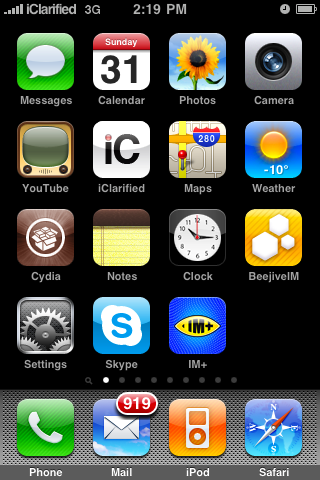
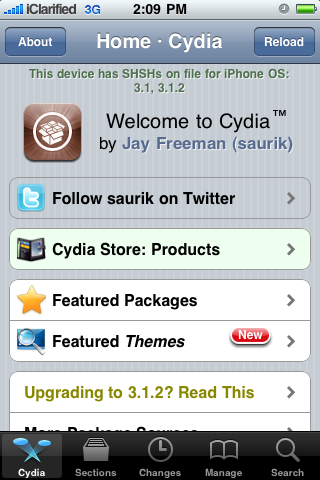
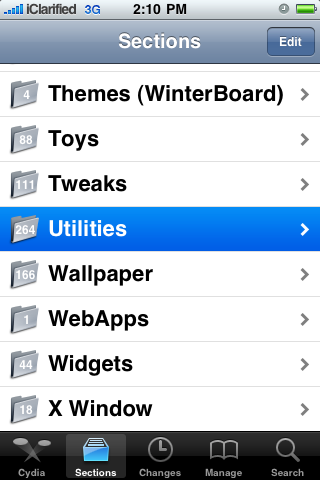
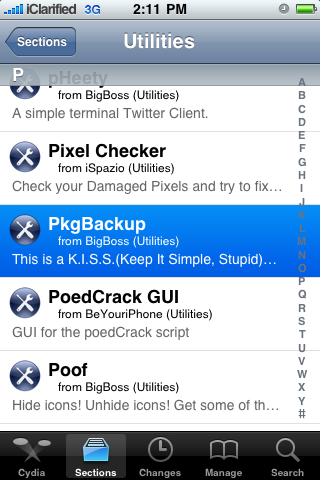
iShakeLock is a simple mobilesubstrate extension which locks/unlocks your iPhone by shaking gesture.

iShakeLock 0.1.deb

Cyder 2: The Application That Lets You Manage Cydia Directly On Your PC


Some of you might remember that we talked about Cyder before, a software that allows us to manage Cydia straight from our PCs. Today Cyder was updated to version 2.01 RC2 and improved.

The improvements are related to the to the software itself. You will get a new UI and pretty much all the problems that you encountered in the previous version were fixed.
The video above shows you what this software is capable of, but the presentation is in french. The good this is that you pretty much don’t need to speak french to get it.
Download Cyder from multiupload.


[via FSM]

Insomnia PRO: Wi-Fi Connection Is Active Even When iPhone Is On Stand-By


New day, new update in Cydia: Insomnia. If you are a long time FSM reader, you know we talked about Insomnia before, or maybe you know the application if you are on Mac ( InsomniaX ). When the iPhone is in stand-by, your Wi-Fi connection is interrupted. If you are downloading a file or using push notifications using your Wi-Fi network, this can represent a discomfort. Luckily Insomnia was ported to the iPhone as well, and it was updated to the PRO version.
Pro means that you can schedule when Insomnia to start and end. Note that Insomnia is a daemon that run in the background. You can find it in Cydia via BigBoss repo and you will get a 7 days trial version Full license is £ 1.99 ( around $3.20 ).

How to Jailbreak Your iPhone 3GS on OS 3.1.2 Using RedSn0w (Windows)

These are instructions on how to jailbreak your iPhone 3GS on the 3.1.2 iPhone firmware using RedSn0w for Windows. The Mac version of this tutorial is here. The 3G version of this tutorial is here . The 2G version of this tutorial is here

This tutorial can be used to jailbreak before applying the BlackSn0w unlock.

Watch the Video!

For your convenience this tutorial is available in video format also. Click the Watch It button to view the tutorial!


*Note: this video uses an older version of RedSn0w but is still applicable.


Step One
Create a folder on your desktop called Pwnage

Download RedSn0w from here and place it in the Pwnage folder. Likewise, download the latest 3.1.2 firmware from below and place it in the same folder.


Extract the RedSn0w executable from the zip file to the Pwnage folder.


Step Two
Connect your iPhone to the computer and launch iTunes.

Select your iPhone from the list of devices on the left. Now hold down shift and click the Restore button. Restore is preferred as it won't create any wasted space on your iPhone.

Navigate to the Pwnage folder on your desktop and select the firmware ipsw. Click the Open button to continue.

Step Three
Once iTunes has finished updating your iPhone to the desired firmware you may launch redsnw0w.exe from the Pwnage folder on your desktop.

Step Four
Once RedSn0w opens click the Browse button

Step Five
Select the firmware ipsw we placed in the Pwnage folder on our desktop then click Open

Step Six
RedSn0w will ask you if this is a newer (fixed) model iPhone. Newer models of the iPhone 3GS have a fixed bootrom which requires you to connect your device to the computer each time you wish to reboot.

To find your serial number you can follow these instructions. The week number is usually the 4th and 5th digit of the serial number. For example, a serial number beginning with 88926 would be week 26 of 2009. 3GS units made week 45 or later will usually have a fixed bootroom. Before week 40 they usually have the older bootroom. Between weeks 40 and 45 the results vary.

If you believe your device has a fixed bootrom then press the Yes button. Otherwise press the No button.

If you accidentally select the wrong option you may have to do a full restore so please make this choice carefully.

Once the firmware has been verified click the Next button to continue.

Step Seven
Make sure Cydia is selected and click the Next button.
From this window you can select the jailbreak options you would like. If you have already pwned your device check the Already pwned option.

Verbose boot displays detailed information on boot of your device and is generally only needed by developers and advanced users.

Make sure Cydia is selected. For this tutorial we will also select Custom boot logo and Custom recovery logo.

When you click to select each custom logo option a dialog window will appear asking you to select the image. Locate the image you would like to use then press the Open button.

*Remember the rules for boot logos are: RGB or Grayscale format with Alpha channel and dimension below 320x480.

Click the Next button to continue

Step Eight
RedSn0w will now instruct you on how to put your iPhone into recovery mode. Disconnect you iPhone 3GS from the computer then power it off. Then hold down the Home button while reconnecting the device to the computer. Don't let go of the button until RedSn0w detects the iPhone and begins installation.

Step Nine
Your iPhone will now reboot

Step Ten
RedSn0w will then begin uploading the new RAM Disk and kernel.

Step Eleven
Once this is complete you will be notified that RedSn0w is done. Click the Finish button. When your iPhone finishes rebooting (5 minutes or so) it will be jailbroken with Cydia on the SpringBoard.


*As usual a big thanks to the iPhone Dev-Team for this contribution to the community.

How to Jailbreak Your iPhone 3G on OS 3.1.2 Using RedSn0w (Windows)

These are instructions on how to jailbreak your iPhone 3G on the 3.1.2 iPhone firmware using RedSn0w for Windows. The Mac version of this tutorial is here. If you have an iPhone 2G click here, if you have and iPhone 3GS click here

This tutorial can be used to jailbreak before applying the BlackSn0w unlock to your device.

Watch the Video!
For your convenience this tutorial is available in video format also. Click the Watch It button to view the tutorial!


*Note: this video uses an older version of RedSn0w but is still applicable


Step One
Create a folder on your desktop called Pwnage

Download RedSn0w from here and place it in the Pwnage folder. Likewise, download the latest 3.1.2 firmware from below and place it in the same folder.


Extract the RedSn0w application from the RedSn0w zip file to the Pwnage folder.


Step Two
Connect your iPhone to the computer and launch iTunes.

Select your iPhone from the list of devices on the left. Now hold down shift and click the Restore button. Restore is preferred as it won't create any wasted space on your iPhone.

Navigate to the Pwnage folder on your desktop and select the firmware ipsw. Click the Open button to continue.

Step Three
Once iTunes has finished updating your iPhone to the desired firmware you may launch redsn0w.exe from the Pwnage folder on your desktop.

Step Four
Once RedSn0w opens click the Browse button

Step Five
Select the firmware ipsw we placed in the Pwnage folder on our desktop then click Open

Step Six
Once the firmware has been verified click the Next button to continue.

Step Seven
From this window you can select the jailbreak options you would like. If you have already pwned your device check the Already pwned option.

Verbose boot displays detailed information on boot of your device and is generally only needed by developers and advanced users.

Make sure Cydia is selected. For this tutorial we will also select Custom boot logo and Custom recovery logo.

When you click to select each custom logo option a dialog window will appear asking you to select the image. Locate the image you would like to use then press the Open button.

*Remember the rules for boot logos are: RGB or Grayscale format with Alpha channel and dimension below 320x480.

Click the Next button to continue

Step Eight
Please plug your iPhone into the computer and make sure its OFF then click the Next button

Step Nine
RedSn0w will now guide you through the steps to get into DFU mode.

Hold down both the Home button and the Power button for 10 seconds.

Release the Power button and continue holding the Home button until RedSn0w detects the device.

Step Ten
Your iPhone will now reboot

Step Eleven
RedSn0w will then begin uploading the new RAM Disk and Kernel.

Step Twelve
Once this is complete you will be notified that RedSn0w is done. Click the Finish button. After your iPhone finishes rebooting (5 minutes or so), it will be jailbroken with Cydia on the SpringBoard.


*As usual a big thanks to the iPhone Dev-Team for their contribution to the community.

How to Unlock/Jailbreak Your iPhone 2G on OS 3.1.2 Using RedSn0w (Windows)

These are instructions on how to unlock and jailbreak your iPhone 2G on the 3.1.2 iPhone firmware using RedSn0w for Windows.

You can find the Mac version of this tutorial here. If you have an iPhone 3G click here, if you have and iPhone 3GS click here

Step One
Create a folder called Pwnage on your desktop.

Download the following files and place them in the Pwnage folder you just created:


Extract the RedSn0w application from the zip file to the Pwnage folder.


Step Two
Connect your iPhone to the computer and launch iTunes.

Select your iPhone from the list of devices on the left. Now hold down shift and click the Restore button. Restore is preferred as it won't create any wasted space on your iPhone.

Navigate to the Pwnage folder on your desktop and select the firmware ipsw. Click the Open button to continue.

Step Three
Once iTunes has finished updating your iPhone to the desired firmware you may launch redsnw0w.exe from the Pwnage folder on your desktop.

Step Four
Once RedSn0w opens click the Browse button

Step Five
Select the firmware ipsw we placed in the Pwnage folder on our desktop then click Open

Step Six
Once the firmware has been verified click the Next button to continue.

Step Seven
From this window you can select the jailbreak options you would like. If you have already pwned your device check the Already pwned option.

Verbose boot displays detailed information on boot of your device and is generally only needed by developers and advanced users.

Make sure the Cydia and Unlock options are selected. For this tutorial we will also select Custom boot logoand Custom recovery logo.

When you click to select each custom logo option a dialog window will appear asking you to select the image. Locate the image you would like to use then press the Open button.

*Remember the rules for boot logos are: RGB or Grayscale format with Alpha channel and dimension below 320x480.

Click the Next button to continue

Step Eight
We will know need to set the location of our bootloader files.

Click Browse and select the 3.9 bootloader file from the Pwnage folder on your desktop.

Click Browse and select the 4.6 bootloader file from the Pwnage folder on your desktop.

Click the Next button to continue.

Step Nine
Please plug your iPhone into the computer and make sure its OFF then click the Next button

Step Ten
RedSn0w will now guide you through the steps to get into DFU mode.

Hold down both the Home button and the Power button for 10 seconds.

Release the Power button and continue holding the Home button until RedSn0w detects the device.

Step Eleven
Your iPhone will now reboot

Step Twelve
RedSn0w will then begin uploading the new RAM Disk and Kernel.

Step Thirteen
Once this is complete you will be notified that RedSn0w is done. Click the Finish button. After your iPhone reboots (5 minutes or so), it will run BootNeuter then be unlocked and jailbroken with Cydia on the SpringBoard.


*As usual a big thanks to the iPhone Dev-Team for this contribution to the community.