Volume Boost For iPhones On 2.2 Firmware


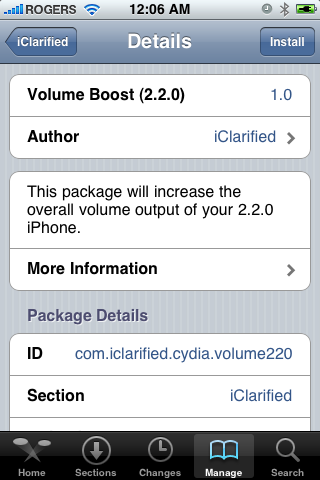
We have released a Volume Boost patch for the iPhone 2.2 firmware. You can install the patch via the iClarified Cydia Repository.

The Volume Boost (2.2.0) patch modifies the plists which set the Maximum Volume Limits on the iPhone. Those that live in regions which have legal limitations on volume will notice the most improvement. Remember the iPhone speaker is still quite weak so don't expect any miracles; however, you will see an improvement.

If you do not have the iClarified repo in your list of sources, you can find instructions on how to add it here

Installer 4.0b11 Released


RiP Dev has released the eleventh beta version of Installer 4.0 for the iPhone

New and Changed:
- Updated category is now only show when something is actually updated.
- Update All button for the Updated category.
- ChangeOwner(path, owner[, group]) script command is now recursive.
- ChangeModeRecursive(path, mode) script command added.
- Each category now lists a number of packages in it.
- Dramatically reduced memory footprint.
- Package information is now properly scrollable.
- More info button in the package information page is now much (much!) easier to hit.
- Better handling of repositories with a large amount of packages.
- Fixed a few Lua commands that were a little broken in the introductory release.

Read More

Need For Speed for iPhone only at Christmas

The site iSpazio has just received information via an email from EA Games, and they confirmed the launch of Need For Speed and Sim City only for the month of December.


. Any word on the most anticipated game for iPhone, posted on the blog here.

Gameloft release of its new video game Brothers In Arms for iPhone

Brothers In Arms: Hour of Heroes is without a shadow of doubt the best game ever made for the iPhone by Gameloft.Days ago you had seen here in the blog of a video game Heroes of Sparta which will also be launched by the company in December.

See the video of the game:

~ ~
The game takes place in the midst of the second world war, where you enter the soldier Jason Backer, the game takes place in several cities and involves 14 missions.
These graphics were too much, this is the best game already released for the iPhone?

The man from DelMonte - He say Yes!

The man from DelMonte - He say Yes!

  1. GOLDEN RULE: If you have a 3G iPhone and want potential soft unlock in the near future do NOT use QuickPwn, and do not use the official ipsw or the iTunes update process without using PwnageTool.
  2. Read item 1 again and again.
  3. At the bottom of this post are the bittorrent files for the latest versions of PwnageTool and QuickPwn.
  4. These are suitable for the recent 2.2 release.
  5. Please read all parts of this post before downloading and using these tools.
  6. The ‘late 2008’ MacBook/air/pro line of computers have an issue with DFU mode. While it’s possible to go from Pwned 2.1 -> Pwned 2.2 (using PwnageTool), you can’t yet go from stock to pwned. If in any doubt use a different machine.
  7. Choosing the correct tool is crucial. Be warned!

NOTE: ‘Simple Mode’ in PwnageTool currently only works for the iPod Touch. To use PwnageTool for iPhones you will need to use ‘Expert mode’. This is a workaround while we make an update and fix this issue. In order to do this you will need to navigate to the ‘General’ window and change two things: Deselect ‘activate’ ONLY if you are normally able to activate through iTunes (but if you wish to ‘hacktivate’ the iPhone using PwnageTool then leave it selected). You will also need to change the partition size to about 1000MB (type in the value or use the slider).

‘Hactivate’ means to activate the iPhone yourself without Apple. This is used if you live outside an officially supported region and cannot activate the phone using iTunes.

UPDATE: PwnageTool 2.2.1 is released, this fixes the bug that is related to ‘Simple Mode’. The torrent is available here


Baseband 101

The ‘baseband’ is the generic name given to the internal components of the iPhone that handle the phone calls and Internet access. This ‘baseband’ is a tiny and unique independent computer system that runs inside your iPhone, it is separate to the main system that handles the applications (such as email and google maps) and it talks to the main part of the phone over an internal communications network. Think of it like a cable modem or other peripheral that is attached to your home PC that needs occasional updates. When a software update is released and presented to you within iTunes the baseband is sometimes updated (to fix bugs or add new features). The 2.2 update for the iPhone 3G contains such an update, so running the vanilla updater straight away with iTunes will reprogram and update the baseband. This could be bad for certain people, depending on your ultimate aim.

SIM Free/SP Unlocked/Factory Unlocked iPhone 3G

This applies if you bought your iPhone 3G for $$$$$$$. This model of iPhone 3G doesn’t have an Service Provider lock (aka factory unlocked) and you are able to put any SIM card into the phone and get service. Your phone is already unlocked so you do not need to worry about baseband updates, simply upgrade to 2.2 using iTunes and then use QuickPwn to Pwn and Jailbreak. This will add Cydia and Installer too.

Locked iPhone 3G - Preserve Baseband

This applies if you have a locked iPhone 3G and you wish to update to 2.2 but preserve the iPhone’s current baseband software. Preserving the baseband will give you the maximum chance for any upcoming software unlock. To upgrade your phone to 2.2 and preserve the state of the baseband you need to create a custom .ipsw with PwnageTool. This custom .ipsw will not contain the baseband update but of course will still allow all the cool new stuff from 2.2.

There are plenty of tutorials about this process on the web, but PwnageTool contains intuitive graphics and easy to follow prompts that should have you up and running in no time at all. Please note: PwnageTool is only available for Mac OS X.

Locked iPhone 3G

If you are using your iPhone with one carrier and have no interest in the possibility of an iPhone 3G unlock in the near future then just restore or upgrade to 2.2 using iTunes and use QuickPwn to Jailbreak and add Cydia and Installer.

iPhone 2G (1st Generation)

Update or Restore your iPhone 2G with iTunes then run QuickPwn to do the magic, ‘nuff said, you don’t need to worry about anything.

iPod Touch 1G (Original iPod Touch)

Update to 2.2 with iTunes and run QuickPwn.

iPod Touch 2G (New iPod Touch)

Sorry, no support at this time.

Bittorrent Releases

  • PwnageTool 2.2.1 for Mac OSX is here SHA1 Sum - 3a91f2bf4f342baaa700ae7d35959d7ade186134
  • QuickPwn 2.2 for Mac OSX is here SHA1 Sum - 254b8af0e19870a4660b7b11e3b6f6ae1d6bc66f
  • QuickPwn 2.2 for Windows is here SHA1 Sum - ffdbc561224c61ffc2713cb6a6e696b6d429c4ca

Unofficial Mirrors

The following links are unofficial download mirrors, you download these at your own risk, we accept no responsibility if your computer explodes or if it becomes part of a NASA attacking botnet or even worse if your hands fall off mid-way during the use of these archives. We do not check these links or archives. Always check the published SHA1 sums. We would prefer that you downloaded the official bittorrent release that is linked above, but you are welcome to try these if you really must. Mirror owners should email direct links only to blog@iphone-dev.org , please don’t place mirrors in the comments as they will be deleted.

Mac PwnageTool

Mac QuickPwn

Windows QuickPwn

Gameloft announces 2 more games for the iPhone

The Gameloft has us with several games this year, as Prince of Persia, Asphalt 4, Real Football and others and not enough like an [unciou two fantastic games for the iPhone.

Brothers in Arms is a game of shooting in person, based on Second World War and with great 3D graphics, and ONTA with a large arsenal of weapons, tanks and Jeeps of war. The commands are given with touch screen and acelorômetro will be used in some moments of the game to perform specific movements.

Heroes of Sparta is the name of the second game to be released by Gameloft, the game is God of War style, in the third person. O jogo também será controlado por toques na tela, mas o game vai te mostrar a onde você deve pressionar para realizar os novimentos. The game will also be controlled by touch screen, but the game goes to show you where you should press to achieve the novimentos.


BigBoss Warns Not to Use Pusher


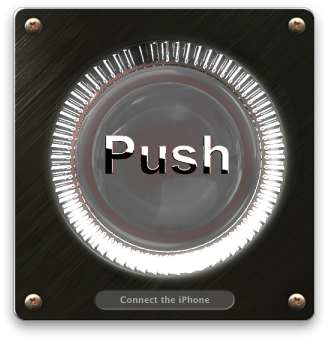
BigBoss has posted a warning on his website not to use Pusher. Pusher is RiPDev’s 2.2 version of a jailbreak that was released yesterday. BigBoss says RiPDev’s version will block access to / partition and make it impossible to install Cydia.

Pusher is RiPDev’s 2.2 version of a jailbreak. This should be avoided and not used. Instead use the dev team’s jailbreaks. RiPDev’s version will block access to / partition and make it impossible to install Cydia. (They want you using Installer of course). It’s pretty much worthless since most the packages are in Cydia. The dev team’s jailbreak allows you to use both Cydia and Installer. There is no valid reason to use Pusher instead of one of the pwnages below.

Update:
This point had to be made. Pusher tries to say it doesn’t void your warranty indicating that it is different than pwnage / quickpwn in this regard. It is not. This is a lie! Your warranty is “officially” voided, although a simple restore in iTunes undoes any jailbreak and you can always get warranty service. Using pusher or pwnage makes no difference in this regard.

Pusher is not better for newbies. The purpose of jailbreaking is to get as much non-appstore software onto your device as you can. Installer only offers abotu 8% of what is in Cydia. Certainly having 8% of the software packages is not good for newbies.

Read More


RiP Dev Releases Pusher: A 2.2 Jailbreak


RiP Dev has just released Pusher. A Mac OS X Jailbreaking tool that installs Installer, and other tools. Pusher works differently however; it installs files onto the user partition of the phone without opening the system partition up. It works for both 2G and 3G phones running 2.0.2, 2.1 and 2.2 firmwares. It is currently Mac OS X only, with a Windows Version releasing soon.


So my point is simple - jailbreak is no longer needed in its "traditional" form for most people. This is why we have developed a tool that does something else... and it's absolutely amazing. Here's what it does: it puts some tools (including our own Installer) onto the user partition of the phone without opening the system partition up! You get Installer, a whole world of third-party tools that didn't got into the AppStore for some reason, such as Kate, Qik, Snapture, and dozens of others, all that without compromising your security!


The tool is named Pusher (mostly because it pushes some things onto the iPhone, and because we found the allusion funny). It works for both 2G and 3G phones running 2.0.2, 2.1 and 2.2 firmwares. Simply download it, launch and follow the instructions on-screen - the whole process takes about 3 minutes.


To make your life even sweeter, we went ahead and added a few things for free that we thought might be useful - an alternative system font, an ability to set your SpringBoard background, two alternative Cyrillic keyboards, and a few other extras that might become useful. The Mac OS X version is available for download immediately, with a Microsoft Windows one following shortly after.

Read More

Pusher Homepage


How to Jailbreak Your 2.x.x 3G iPhone Using QuickPwn (Windows)

These are instructions on how to jailbreak your 3G iPhone to the 2.1-2.2 iPhone firmware using QuickPwn for Windows. Before beginning make sure you have updated to iTunes 8.0.2.

Important***: Do not attempt these instructions for the 2.2 iPhone Firmware unless you don't care about a software unlock in the future. Using QuickPwn with the 2.2 iPhone Firmware could reduce your chances of being able to unlock the iPhone 3G.

Step One
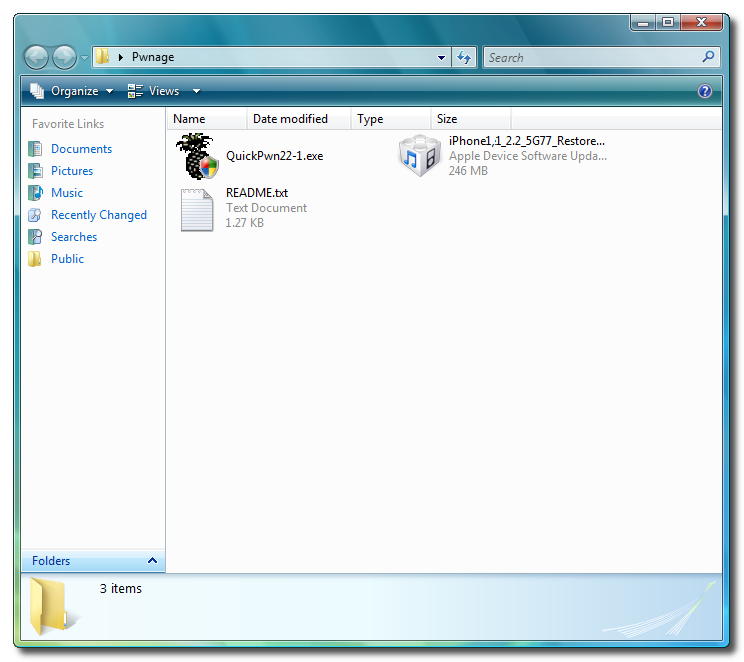
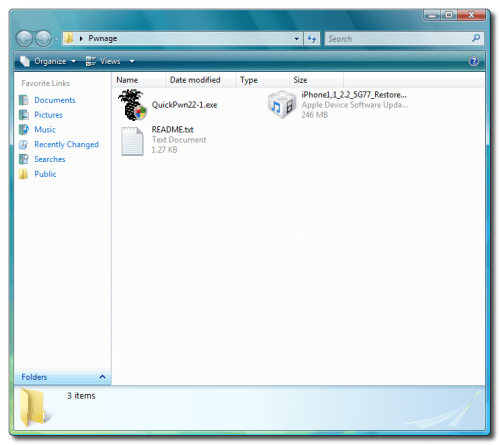
Create a folder called Pwnage on your desktop.

Download the following files and place them in the Pwnage folder you just created:
- QuickPwn 2.2
- 2.2.0 (3G): iPhone1,2_2.2_5G77_Restore.ipsw

Extract the QuickPwn22.zip file to the Pwnage folder.

Step Two
Connect your iPhone to the computer and launch iTunes.


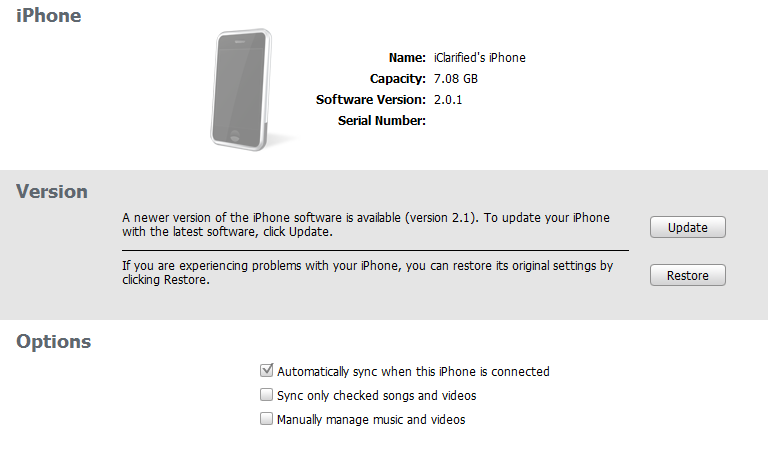
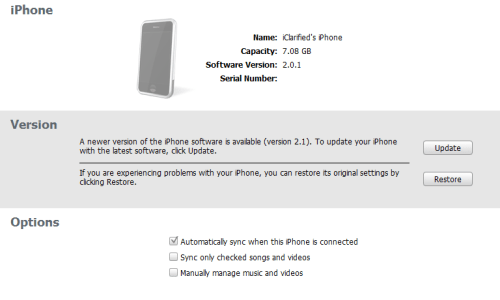
Select your iPhone from the list of devices on the left. Now hold down shift and click the Restore button. Restore is preferred as it won't create any wasted space on your iPhone.

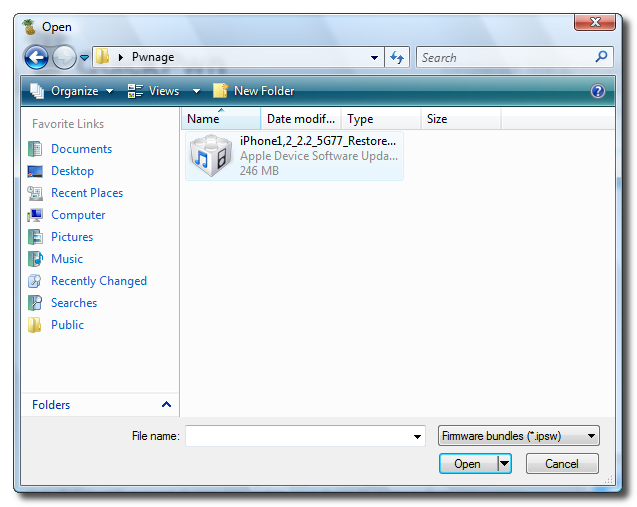
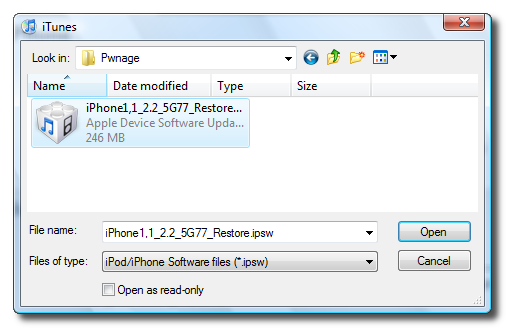
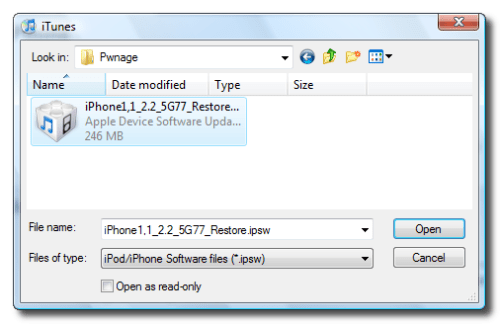
Navigate to the Pwnage folder on your desktop and select the 2.2 firmware ipsw. Click the Open button to continue.

Step Three
Once iTunes has finished updating your iPhone to the 2.2 firmware you may launch QuickPwn.exe from the Pwnage folder on your desktop.


Step Four
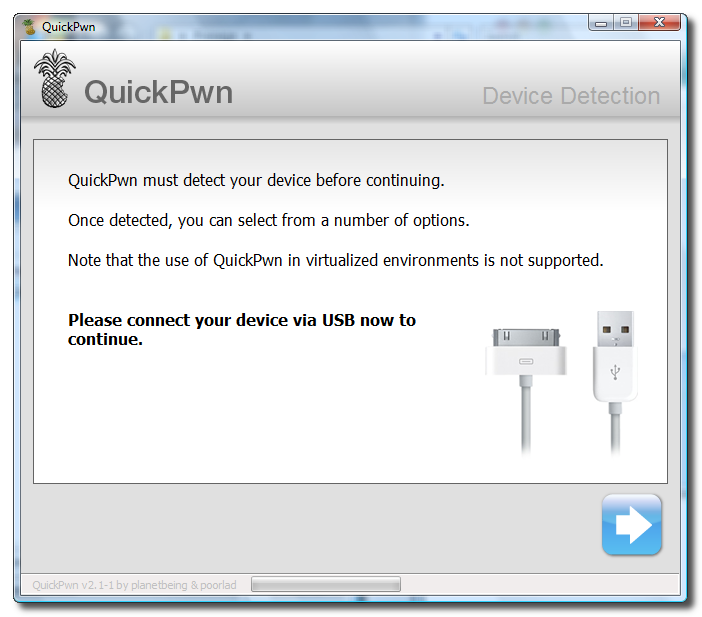
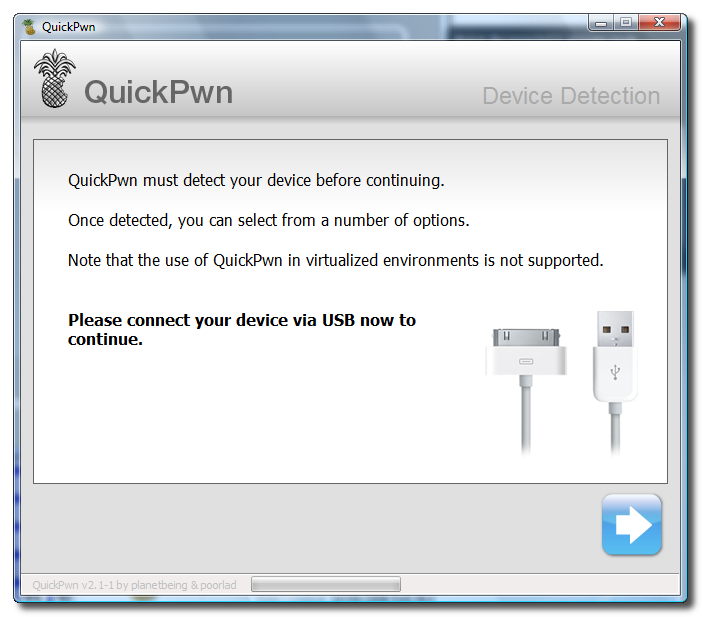
Make sure you iPhone is connected to the computer and click the blue arrow to continue.


Step Five
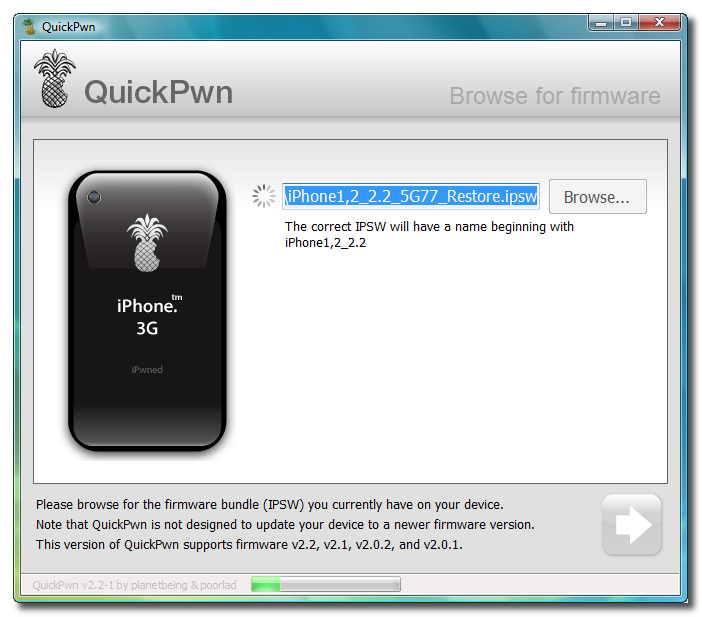
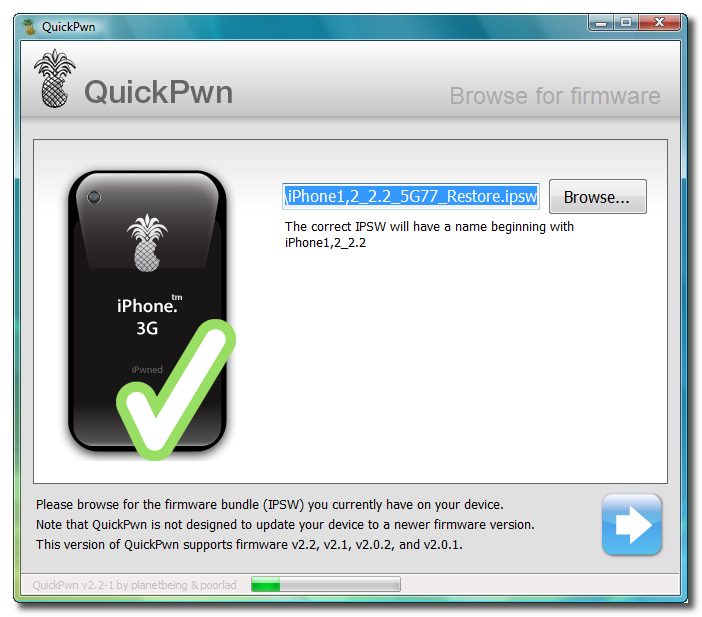
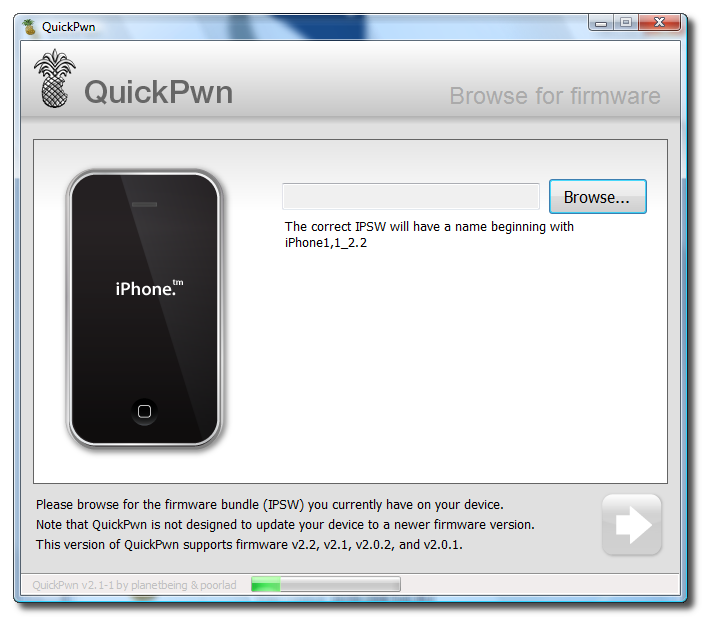
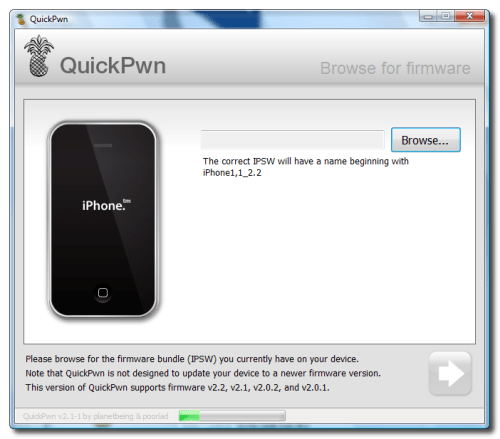
Click the Browse button to locate your iPhone firmware.

Step Six
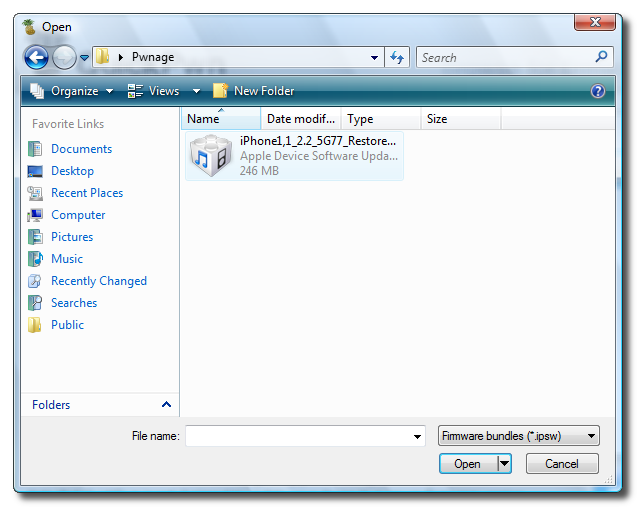
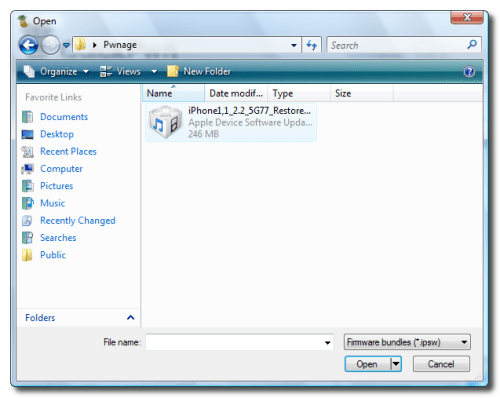
Select the 2.2 firmware ipsw from the Pwnage folder on your desktop then click the Open button.

Step Seven
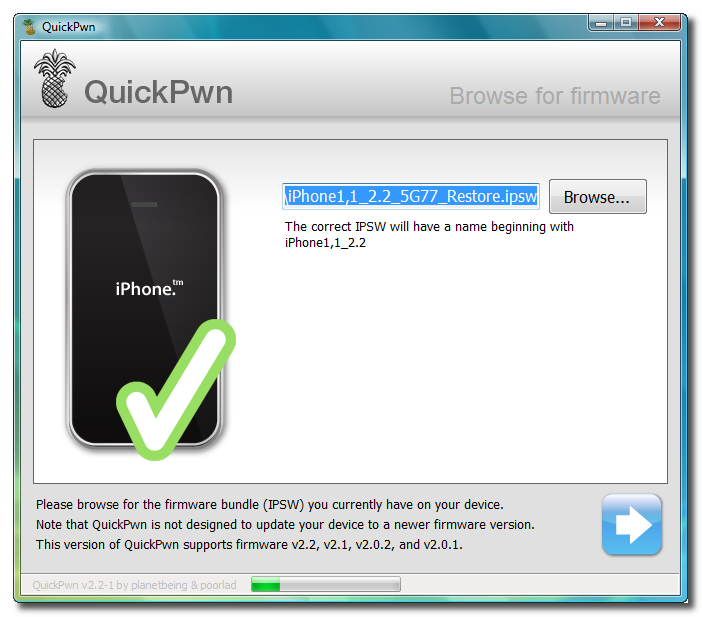
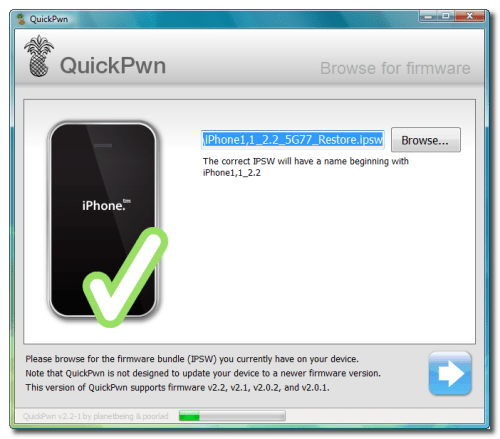
QuickPwn will check to make sure the ipsw is valid. Click the blue arrow button to continue.

Step Eight
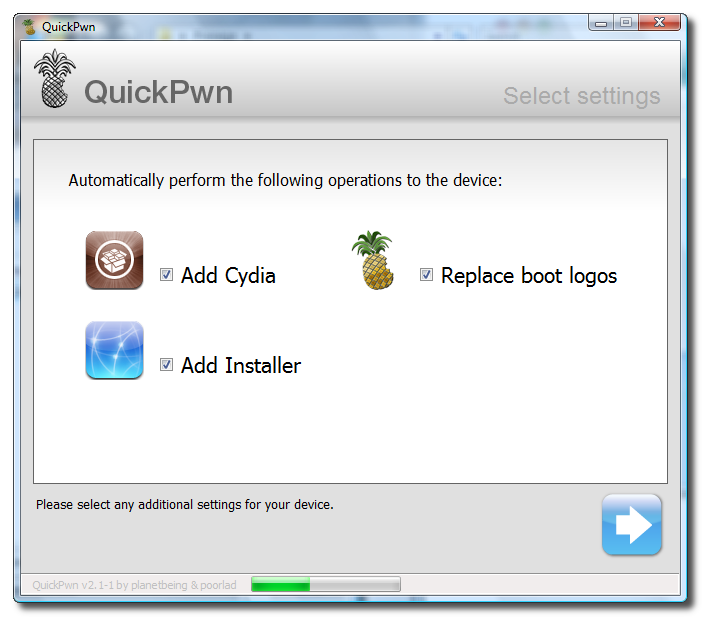
You can now select whether to Add Cydia, Add Installer, or Replace Boot Logos. Select the ones you would like to perform then click the clue arrow button


Step Nine
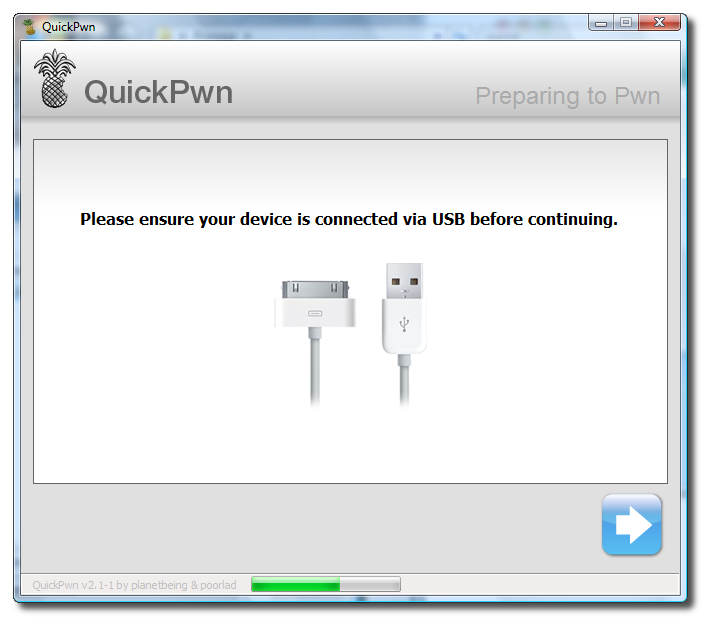
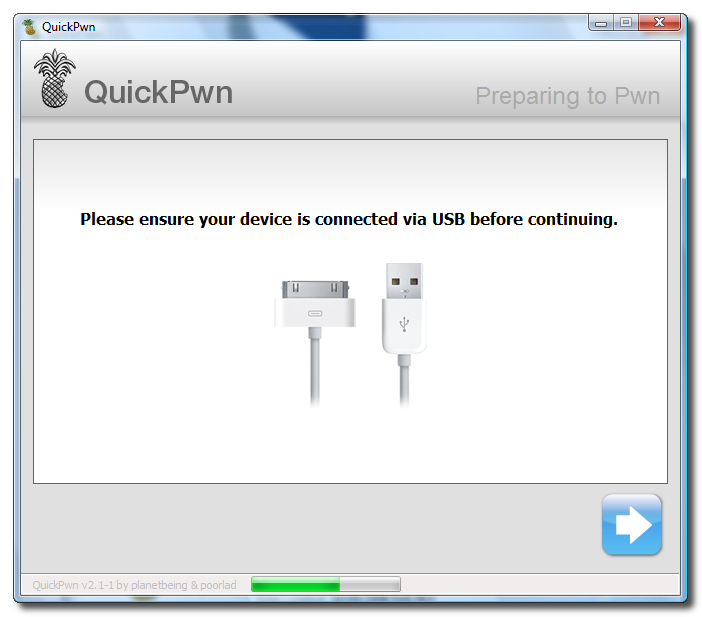
QuickPwn will now ask you to confirm your iPhone is connected via USB before continuing. Click the blue arrow button to proceed.


Step Ten
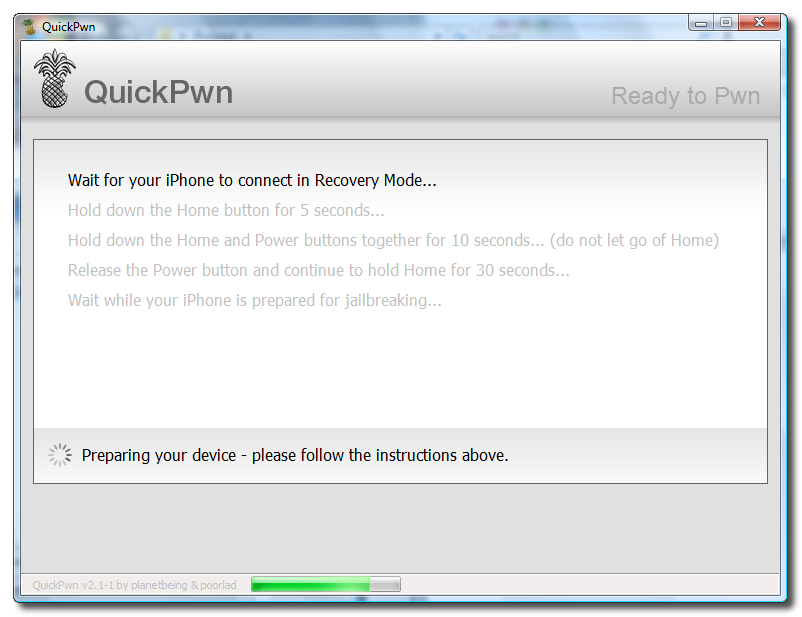
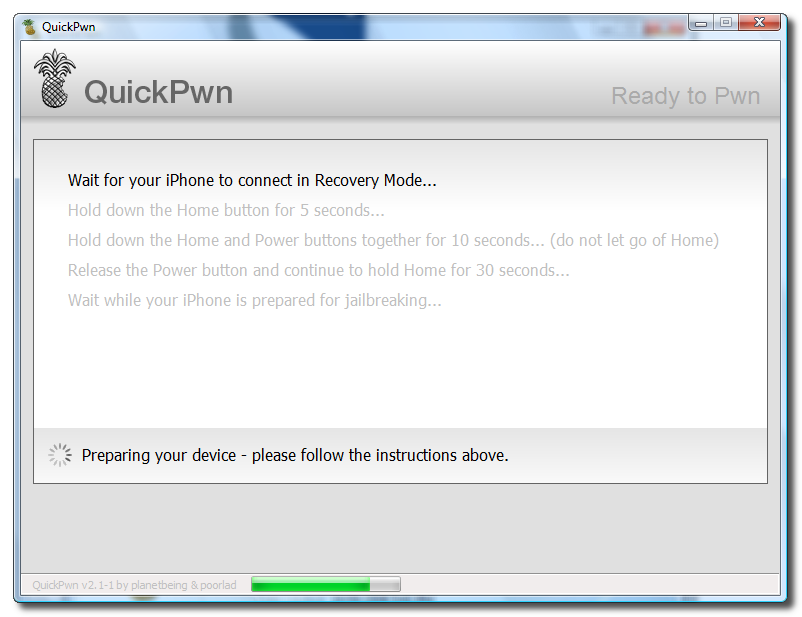
QuickPwn will now automatically put your iPhone into recovery mode. Once its in recovery mode you will be prompted to: Hold the Home button for 5 seconds, Hold the Home and Power buttons for 10 seconds, then release the Power button and continuing holding the Home button until your iPhone is in DFU mode.

Watch the prompts carefully and follow along.


Step Eleven
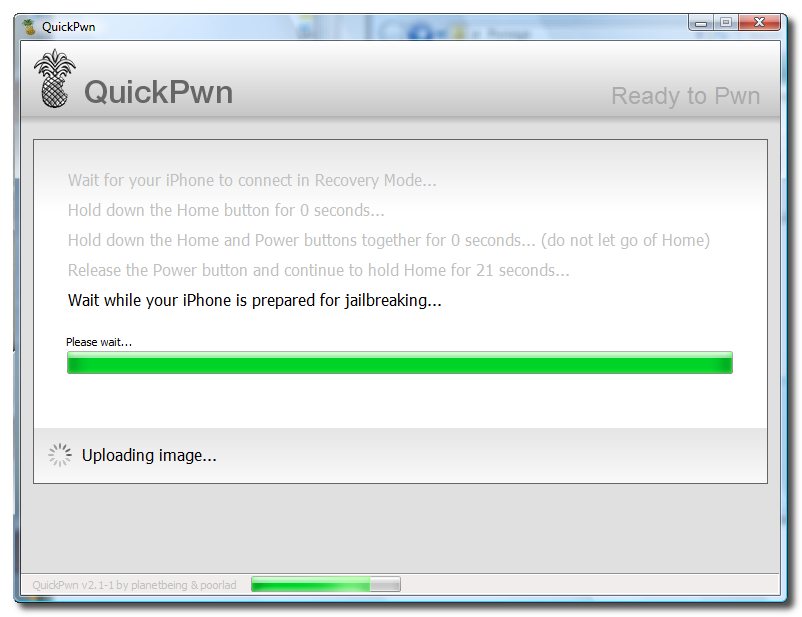
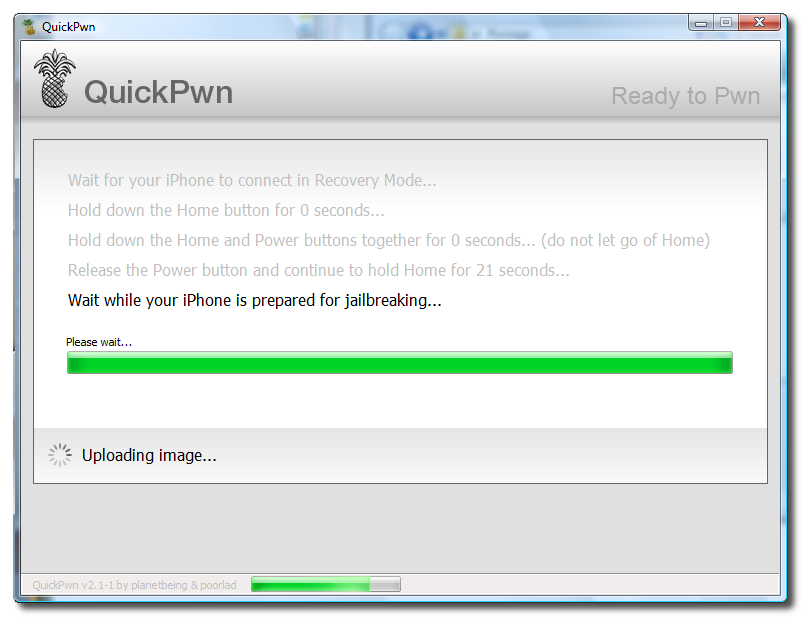
Once QuickPwn detects your iPhone in DFU mode it will begin the jailbreak process.


Step Twelve
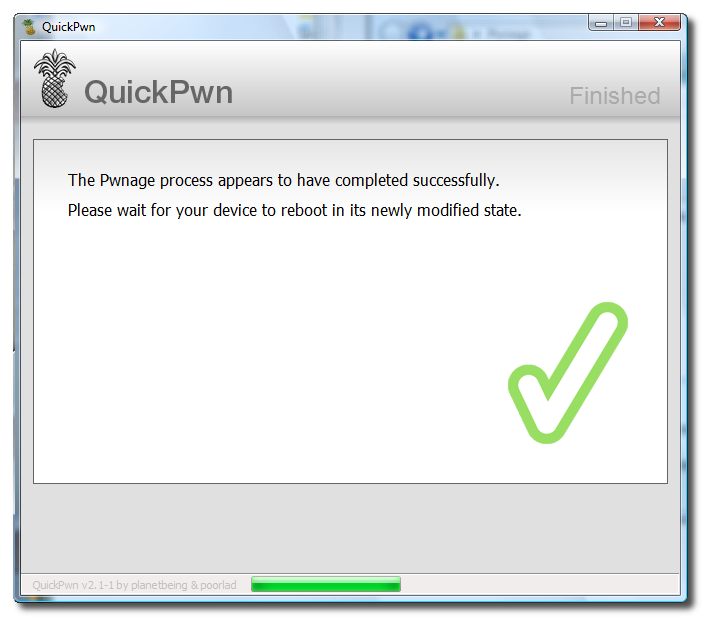
Once jailbreaking is complete QuickPwn will inform you that it was successfull.

How to Jailbreak Your 2.x.x 3G iPhone (Mac) [Updated 2.2]

This tutorial will show you how to jailbreak your 3G iPhone. It has been updated for the 2.2 firmware and the inclusion of the Installer.app beta.

To learn how to use PwnageTool to unlock/jailbreak a 2G iPhone you can use the tutorial found: here.

If you have a 3G iPhone make sure you have iTunes 8.0.2 and continue...

Watch the Video!
For your convenience this tutorial is available in video format also. Click the Watch It button to view the tutorial!

Note this video is for 2.0.2 however its still applies!


Step One
Make a folder called "Pwnage" on the desktop. In it, you will need a couple of things. Pwnage 2.2, found here or here

You will also need the 2.2 iPhone firmware.
2.2.0 (3G): iPhone1,2_2.2_5G77_Restore.ipsw

When downloading the IPSW file, it is best to download it with Firefox!


Step Two
Double click to mount PwnageTool 2.2 then drag the PwnageTool icon into the Pwnage folder.


Then from the Pwnage folder double click to launch the PwnageTool application.


Click Ok if presented with a warning.


Step Three
Click to select Expert Mode from the top menu bar


Step Four
Click to select your iPhone. A check-mark will appear over the image of the phone.


Step Five
Click the blue arrow button to continue. You will be brought to the "Browse for IPSW" page. On my laptop, it automatically found the IPSW. If PwnageTool doesn't automatically find the ipsw file you can click Browse for IPSW....


Click to select the found IPSW file, a checkmark will appear next to it. Then click the blue arrow button to continue.


Step Six
You will then be brought to a menu with 7 choices. Click to select General then click the blue arrow button.


The General settings allows you to decide the partition size. Click activate the phone and Disable partition wipe-out. Click the blue arrow button.

NOTE*: Deselect Activate if you have an iPhone legitimately activated on an official carrier.
NOTE*: You may need to increase the size of the root partition slightly. My first attempt failed at creating the IPSW until I increased the size to about 695 MB.


The Bootneuter settings are greyed out for the3G iPhone. Hopefully this will be enabled soon! Click the blue arrow button.


The Cydia settings menu allows you to create custom packages so you do not have to manually install the necessary them later.


Click to select the Download packages tab. Then click the Refresh button to display all the available packages. Double clicking the package you want will download it and make it available in the Select Packages tab.


Checkmark the ones you want then Click the blue arrow button.


The Custom Packages Settings menu displays listed package settings for your custom IPSW. For know leave these settings as is. Click the blue arrow button to continue.


The Custom Logos Settings menu allows you to add your own images as boot logos. Click the Browse button to select your Boot logo and Recovery logo. If you would like to use the iClarified ones they can be found here: Boot Logo, Recovery Logo


Remember the rules for them: RGB or Grayscale format with Alpha channel and dimension bellow 320x480...


Click the blue arrow button to continue.

Step Seven
You are now ready to begin the pwnage process! Click the Build button to select it then click the Blue arrow button to begin.


Step Eight
You will be asked to save your custom .ipsw file. Save it to your Pwnage folder you created on your Desktop.


Your IPSW is not being built. Please allow up to 10 minutes.


You will be asked to enter your administrator password. Do this then click the OK button.


When prompted if your iPhone has been Pwned before, we clicked No. It allows for a more thorough restore.


You will be asked to turn off the device. Make sure it is connected to the USB port.


Step Nine
Be ready to follow directions now. It will ask you to hold the home button and the power button for 10 seconds. Then, you will have to release the power button and hold the home button for 10 seconds to enter DFU.


If you fail, it will show you a message. Click Yes. Unplug the iPhone from the USB. Turn it off, then turn it back on. Plug it back into the USB and turn off the iPhone when prompted.

When done correctly, Pwnage 2.2 will display a message telling your that it successfully entered DFU mode. iTunes will also pop-up.


IMPORTANT***: The ‘late 2008’ MacBook/air/pro line of computers have an issue with DFU mode, it is possible to go from Pwned 2.1 -> 2.2 but going from stock to Pwned does not work, if in any doubt use a different machine. Meaning, if you have a late 2008 model MacBook and have not pwned you will have to use a different computer until we post a solution. If you have a late 2008 model MacBook and HAVE pwned then you can simply put the iPhone into recovery mode and restore with the newly created IPSW. You can find instructions on how to put the iPhone into recovery mode here

Step Ten
In iTunes, hold the Alt/Option button and click Restore.


Step Eleven
Navigate to the Pwnage folder on your desktop using the dialog window that appears. Select the custom IPSW that was created (iPhone1,2_2.2_5G77_Custom_Restore.ipsw) and click the Open button.


Step Twelve
iTunes will now restore the firmware on your iPhone. This can also take up to 10 minutes.


If you so desire you may restore from a previous backup to keep all your settings or set your iPhone up fresh.


Step Thirteen
Once the restore is completed your iPhone will reboot and you will notice Cydia is present on the SpringBoard!

How to Unlock/Jailbreak Your 2.x.x 2G iPhone Using QuickPwn (Windows)

These are instructions on how to unlock/jailbreak your 2G iPhone to the 2.2 iPhone firmware using QuickPwn for Windows. Before beginning make sure you have updated to iTunes 8.0.2.

Step One
Create a folder called Pwnage on your desktop.

Download the following files and place them in the Pwnage folder you just created:
- QuickPwn 2.2
- BL 3.9
- BL 4.6
- 2.2.0 (2G): iPhone1,1_2.2_5G77_Restore.ipsw

Extract the QuickPwn22.zip file to the Pwnage folder.


Step Two
Connect your iPhone to the computer and launch iTunes.


Select your iPhone from the list of devices on the left. Now hold down shift and click the Restore button. Restore is preferred as it won't create any wasted space on your iPhone.


Navigate to the Pwnage folder on your desktop and select the 2.2 firmware ipsw. Click the Open button to continue.


Step Three
Once iTunes has finished updating your iPhone to the 2.2 firmware you may launch QuickPwn.exe from the Pwnage folder on your desktop.


Step Four
Make sure you iPhone is connected to the computer and click the blue arrow to continue.


Step Five
Click the Browse button to locate your iPhone firmware.


Step Six
Select the 2.2 firmware ipsw from the Pwnage folder on your desktop then click the Open button.


Step Seven
QuickPwn will check to make sure the ipsw is valid. Click the blue arrow button to continue.


Step Eight
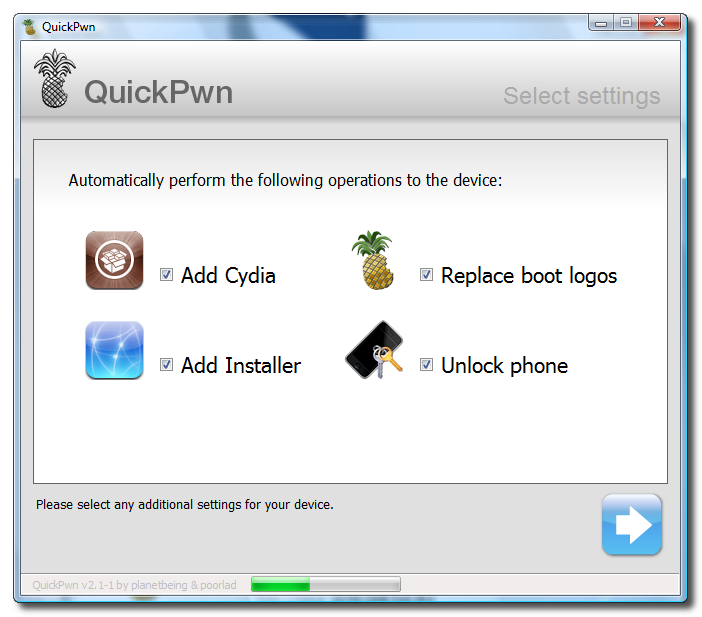
You can now select whether to Add Cydia, Add Installer, Replace Boot Logos, and Unlock Phone. Select the ones you would like to perform then click the clue arrow button


Step Nine
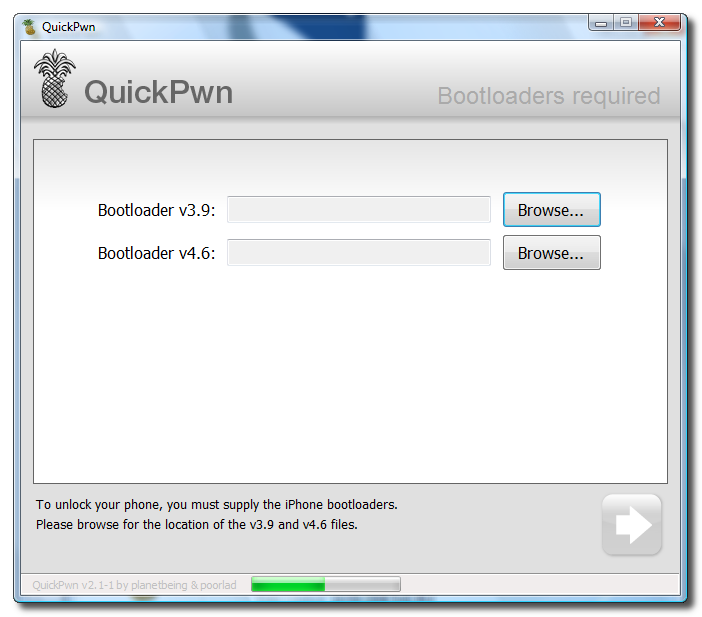
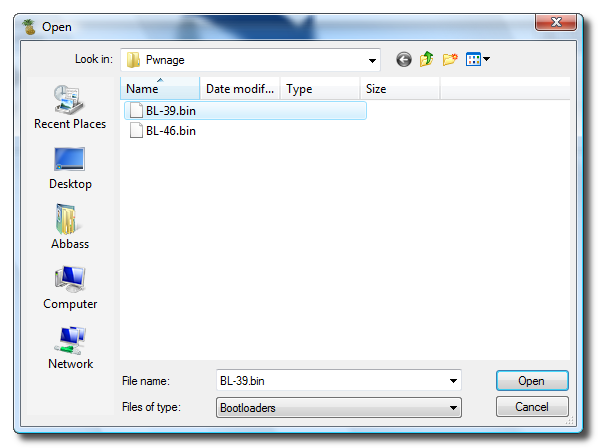
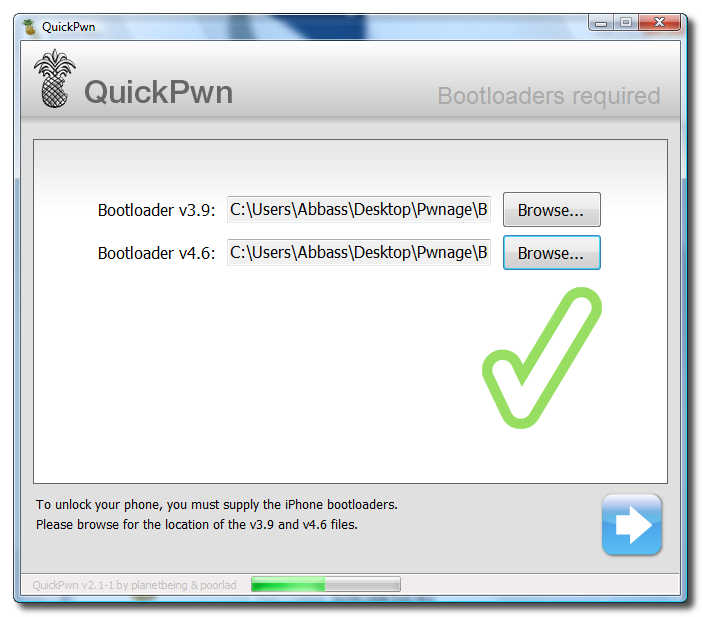
You will now be asked to select your bootloader files. Click the Browse button and select the 3.9 bootloader from the Pwnage folder on your desktop. Likewise do the same thing for the 4.6 bootloader file. Then click the blue arrow button to continue.


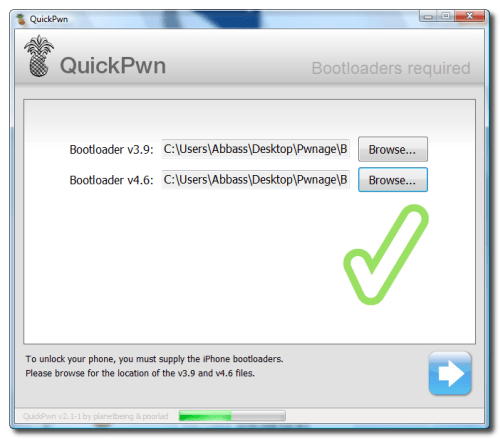


Step Ten
QuickPwn will now ask you to confirm your iPhone is connected via USB before continuing. Click the blue arrow button to proceed.
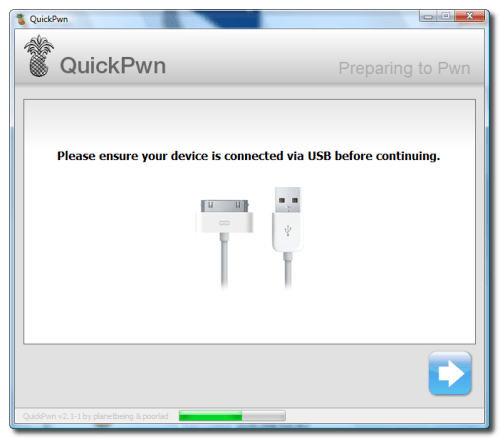

Step Eleven
QuickPwn will now automatically put your iPhone into recovery mode. Once its in recovery mode you will be prompted to: Hold the Home button for 5 seconds, Hold the Home and Power buttons for 10 seconds, then release the Power button and continuing holding the Home button until your iPhone is in DFU mode.


Watch the prompts carefully and follow along.

Step Twelve
Once QuickPwn detects your iPhone in DFU mode it will begin the jailbreak process.


Step Thirteen
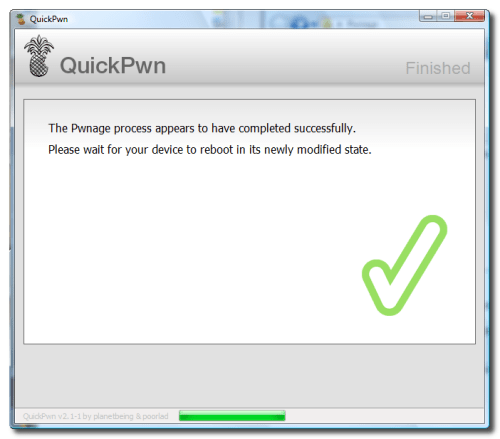
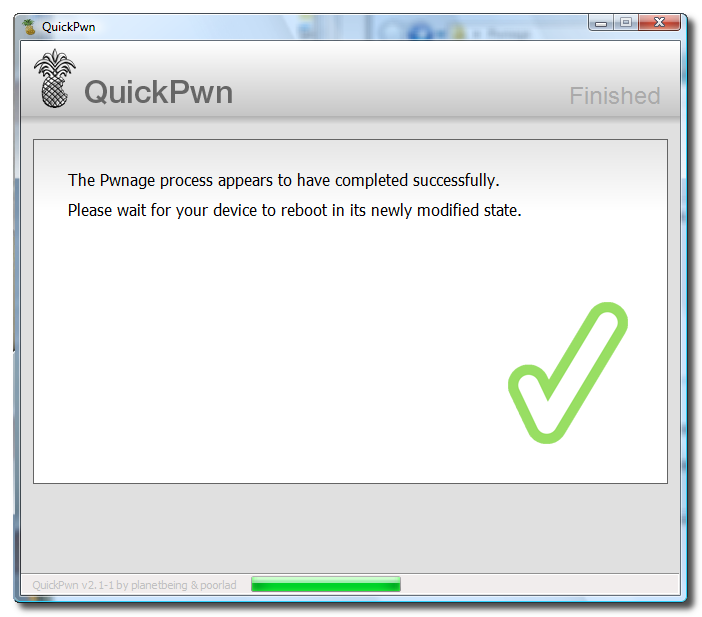
Once jailbreaking is complete QuickPwn will inform you that it was successfull. Your iPhone will then proceed to run BootNeuter. This process will take about 5 minutes. Please be patient. Your iPhone will reboot when it has completed the process successfully!
iPhone Dev-Team Releases iPhone 2.2 Jailbreak


The iPhone Dev-Team has released new versions of QuickPwn and PwnageTool for the 2.2 iPhone firmware.

You can find our newly updated tutorials here (more to come):
- Jailbreak 3G (Mac) (Safe)
- Unlock/Jailbreak 2G (Mac) (Safe)
- Unlock/Jailbreak 2G (QuickPwn Windows) (Safe)
- Jailbreak 3G (QuickPwn Windows) (Unsafe if you want to unlock in the future)
- Jailbreak 2G/3G (QuickPwn Mac) (Unsafe for 3G if you want to unlock in the future)


*NOTE: Unfortunately, there is no PwnageTool for Windows yet. That means if you care about a 3G unlock it is NOT safe for Windows users to jailbreak and update to 2.2 yet. If you don't care about a 3G unlock there is a Windows version of QuickPwn linked below.


-----

1. GOLDEN RULE: If you have a 3G iPhone and want potential soft unlock in the near future do NOT use QuickPwn, and do not use the official ipsw or the iTunes update process without using PwnageTool.
2. Read item 1 again and again.
3. At the bottom of this post are the bittorrent files for the latest versions of PwnageTool and QuickPwn.
4. These are suitable for the recent 2.2 release.
5. Please read all parts of this post before downloading and using these tools.
6. The ‘late 2008’ MacBook/air/pro line of computers have an issue with DFU mode, it is possible to go from Pwned 2.1 -> 2.2 but going from stock to Pwned does not work, if in any doubt use a different machine.
7. Choosing the correct tool is crucial. Be warned!


NOTE: ‘Simple Mode’ in PwnageTool currently only works for the iPod Touch. To use PwnageTool foriPhones you will need to use ‘Expert mode’. This is a workaround while we make an update and fix this issue. In order to do this you will need to navigate to the “General” window and change two things: Deselect “activate” ONLY if you are normally able to activate through iTunes (but if you wish to ‘hacktivate’ the iPhone using PwnageTool then leave it selected). You will also need to change the partition size to about 1000MB (type in the value or use the slider).


Baseband 101

The ‘baseband’ is the generic name given to the internal components of the iPhone that handle the phone calls and Internet access. This ‘baseband’ is a tiny and unique independent computer system that runs inside your iPhone, it is separate to the main system that handles the applications (such as email and google maps) and it talks to the main part of the phone over an internal communications network. Think of it like a cable modem or other peripheral that is attached to your home PC that needs occasional updates. When a software update is released and presented to you within iTunes the baseband is sometimes updated (to fix bugs or add new features). The 2.2 update for the iPhone 3G contains such an update, so running the vanilla updater straight away with iTunes will reprogram and update the baseband. This could be bad for certain people, depending on your ultimate aim.


SIM Free/SP Unlocked/Factory Unlocked iPhone 3G

This applies if you bought your iPhone 3G for $$$$$$$. This model of iPhone 3G doesn’t have an Service Provider lock (aka factory unlocked) and you are able to put any SIM card into the phone and get service. Your phone is already unlocked so you do not need to worry about baseband updates, simply upgrade to 2.2 using iTunes and then use QuickPwn to Pwn and Jailbreak. This will add Cydia and Installer too.


Locked iPhone 3G - Preserve Baseband

This applies if you have a locked iPhone 3G and you wish to update to 2.2 but preserve the iPhone’s current baseband software. Preserving the baseband will give you the maximum chance for any upcoming software unlock. To upgrade your phone to 2.2 and preserve the state of the baseband you need to create a custom .ipsw with PwnageTool. This custom .ipsw will not contain the baseband update but of course will still allow all the cool new stuff from 2.2.

There are plenty of tutorials about this process on the web, but PwnageTool contains intuitive graphics and easy to follow prompts that should have you up and running in no time at all.


Locked iPhone 3G

If you are using your iPhone with one carrier and have no interest in the possibility of an iPhone 3G unlock in the near future then just restore or upgrade to 2.2 using iTunes and use QuickPwn to Jailbreak and add Cydia and Installer.


Locked iPhone 2G (1st Generation)

Restore your iPhone 2G with iTunes then run QuickPwn to do the magic, ‘nuff said.


iPod Touch 1G (Original iPod Touch)

Update to 2.2 with iTunes and run QuickPwn.

iPod Touch 2G (New iPod Touch)
Sorry, no support at this time.
-----


Downloads
:

- Mac PwnageTool

- Mac QuickPwn

- Windows QuickPwn

We will be updating our tutorials shortly please stay tuned for step by step instructions!

Read More

Firmware 2.2 now available

You just go out (03:45) the new software version of the iPhone as promised days ago.


! As I speak here on the Blog, do not upgrade your iPhone!

Once you've got jailbreack and to unlock this version, you will have a very detailed tutorial with pictures and to perform the upgrade.

UPDATE - By Hi-Tech UPDATE - By Hi-Tech

About update

For those who have the iPhone unlocked in 2G and 2.x firmware update the iPhone, the release will be maintained, but the jailbreak will be lost and the iPhone will have to remain until the original Devtara release the software to do the jailbreak. There is no update from Baseband in 2.2.

If it is done for a Restore 2.2, the iPhone can not be activated and will be out of work because the existing software does not make the activation of the iPhone.

With 3G iPhone there was an update of the Baseband, then it is better not to upgrade, since the release via software may become more difficult with this update.

It continues to be recommended that does not update the iPhone, but rushed to the iPhone 2G that do not mind losing the jailbreak and Apps cracked, know that the iPhone will not be damaged (only if the firmware 2.x and is made a UPDATE).

These news I read in forun Hackintosh on the topic of the link below.

http://hackint0sh.org/forum/showt http://hackint0sh.org/forum/showt
hread.php?t=57769 hread.php? t = 57,769

A member of Hackintosh said to have done the update of the iPhone 2G him in the 2.1 to 2.2 and the iPhone remained unlocked, but the iPhone was disabled, ie only have access to screen for connection of an emergency.

So I guess no one better to

The silicon chip inside her head...

The silicon chip inside her head...


This ability we now have to spawn background tasks means we are one step closer to the 3G soft unlock. We have a clear path to follow, and “all” that remains is the implementation.

A quick summary of the key 3G-unlock-related achievements we’ve made so far:

  1. Unsigned code execution on 3G baseband
  2. Reverting 01.45 baseband to previous versions
  3. Patching of static text (the AT&V demo)
  4. Injection of AT routines (the task list demo)
  5. Injection of background tasks (this demo)

Now it’s on to overriding the baseband code that enforces the carrier lock.

A high-quality version of the video is available via bittorrent here.

A version that’s playable on your iPhone or iPod Touch is available here

P.S. That “One more thing!” text is being generated by the backgrounded “steve” task at 5-second intervals. The “A0” is the task’s priority.

P.P.S. Remember…don’t update to official 2.2 when it comes out if you ultimately want a 3G soft unlock!

Sir, step away from the keyboard.

So, as anticipated our friends the misfits have recently released the long awaited 2.2 update. We can confirm that this update SHOULD NOT be applied using iTunes if you want the chance of a soft-unlock in the near future.

If you want to keep that option of a ‘soft-unlock in the near future’ available but you want the new features of 2.2, you will be able to update to 2.2 using a PwnageTool created custom ipsw file that disables the baseband update. You will be able to do this using an updated version of PwnageTool that will be released sometime soon.

Some facts -

  • The 2.2 firmware for 3G contains a baseband update for the 3G iPhone
  • The 2.2 firmware for 2G (1st gen iPhones) doesn’t contain a baseband update and the baseband is still at 04.05.04
  • We believe that our Pwnage technique (and therefore the Jailbreak) isn’t affected, but PwnageTool and QuickPwn do not support this release as yet, so DO NOT install 2.2 using iTunes as you will lose your jailbreak
  • If you apply this update and you previously relied on PwnageTool or QuickPwn to activate your phone, it may become temporarily deactivated and unusable (until we release the new version of PwnageTool or QuickPwn).
  • PwnageTool and QuickPwn updates will be released as soon as possible that will allow a safe update path to 2.2 the release of these updates is inevitable but not imminent, we are creating the modifications right now and we need to put the new software through the usual testing process.
  • If you apply this update and you have third-party (non AppStore) applications that you rely on they will stop working.
  • 2G (1st gen) iPhone users who cannot wait for the new PwnageTool or QuickPwn can safely “Update” to 2.2 using iTunes, this will preserve the existing activation. However “restoring” to 2.2 using iTunes will return the iPhone to the unactivated state. If you are in any doubt just wait. NB: This works for 2G ONLY.
  • The use of SIM-Proxies (small circuit boards/chips that sit underneath the SIM card) to provide GSM/UMTS service on your locked iPhone 3G is a method that we have always advised against. Early reports suggest that the 2.2 update disables the functionality of these devices. The techniques used were always unreliable and we are surprised that they have lasted this long.
  • We are not working on the 2nd generation iPod touch at the moment, so we cannot comment on what the the 2.2 software update may do to this specific model

So, as always, if you are in any doubt whatsoever please delay the install of this firmware on any of your devices until we have investigated the release in more detail. Watch this space ;-)

iPhone 2.2 Firmware Coming Tomorrow?


A new iPhone vulnerability allowing a website to force a call to any number may be resolved in a firmware release tomorrow.

The vulnerability was presented in a press release from the Fraunhofer Institute for Secure Information Technology (SIT). They indicate that Apple has been notified of the threat and that a fix will become available on November 21st through a firmware upgrade.

It is thought that this firmware upgrade might very well be the iPhone 2.2 update which was similarly predicted by iPhoneHellas.

Read More

iPhone Dev-Team One Step Closer to 3G Unlock

In a post on their blog the iPhone Dev-Team has announced they are one step closer to a 3G unlock and now have a clear path to follow.

-----
This ability we now have to spawn background tasks means we are one step closer to the 3G soft unlock. We have a clear path to follow, and “all” that remains is the implementation.

A quick summary of the key 3G-unlock-related achievements we’ve made so far:
1. Unsigned code execution on 3G baseband
2. Reverting 01.45 baseband to previous versions
3. Patching of static text (the AT&V demo)
4. Injection of AT routines (the task list demo)
5. Injection of background tasks (this demo)

Now it’s on to overriding the baseband code that enforces the carrier lock.

A high-quality version of the video is available via bittorrent here.

P.S. That “One more thing!” text is being generated by the backgrounded “steve” task at 5-second intervals. The “A0” is the task’s priority.

P.P.S. Remember…don’t update to official 2.2 when it comes out if you ultimately want a 3G soft unlock!
-----

Read More


-------------------------------------------

New "magic" to iPhone and iPod Touch

I found 3 more new magic for you have fun. .

1 - Your cell phone takes a shot combustion LCD - Sinister


2 - The icons of your disappear with the power of his thinking - Incredible

3 - Your finger in danger when a hungry mouth tries to eat him - Caution

iPhone Dev-Team Warns Against Installing 2.2 Firmware

The iPhone Dev-Team warns that installing the iPhone 2.2 firmware might prevent a software unlock when it is available.

We’ve made some decent progress with the iPhone 3G, nothing worthy of a party as yet but we are moving along nicely, we’ll keep you updated on this.

Now for something a bit more serious, we’ve explained about Apple’s updates in the past and we’ve warned against the immediate installation of these updates without knowing what they do to your device.

This is indeed true of the iPhone 3G’s upcoming 2.2 release. Installing ‘2.2’ on the iPhone 3G could affect your chances of any software unlock in the near future (should one be found and released), so when you see an update in iTunes await our instructions first!

Please don’t blindly install the update and then complain about it later ;-)


We will post the safe upgrade path when it becomes available.

Read More

Rip Dev Releases New Beta of Installer.app for iPhone


Rip Dev has announced a new version of Installer.app for the iPhone and promised rapid updates to get it in shape as soon as possible.

What's new or fixed in this update...
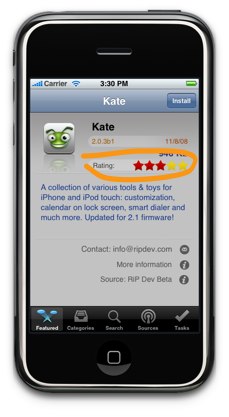
- Added user-driven ratings. We encourage you to submit your votes for various packages. Once more data will be collected (in a few days), that will be reflected on the Featured page.
- SpringBoard is no longer terminated after the software was installed or removed.
- Proxies are (again) supported. The support was broken after we moved to libcurl.
- Introduced download timeouts (again) that were disabled after the move to libcurl.
- Reworked many parts of the engine in an effort to get rid of the occasional GUI stalls.
- If a particular source fails to update, it will be moved to "disabled" state for 6 hours and will not be included in the all sources refresh process. The disabled state is listed as the source icon with a red "stop" sign over it. This is done to prevent unnecessary stalls at the sources refresh if one of the sources goes offline for whatever reason. If you'd like to retry it before 12 hour interval, open its info and hit Refresh button there.
- Removed customInfo support as it was mostly used for unnecessary ads that were disturbing many people. These pages are normally reachable from the "More Info" link.
- Much better error reporting. Forget these "error 3"s and such. The descriptions are much more human readable now. And for script errors, it will show an actual script command that caused an error.
- Installer will prevent iPhone/iPod touch from sleeping when it's downloading or installing something.
- The app icon badge should behave better now.
- Lots of smaller fixes and optimizations I won't list.

Read More

 
 iPhone © 2012 | Designed by LogosDatabase.com, in collaboration with Credit Card Machines, Corporate Headquarters and Motivational Quotes